Dynamic export : Setup

Watch the guide

8 steps

2 years ago

1
'Export to Dynamic Format' supports only this recipe. Follow this tutorial to configure it
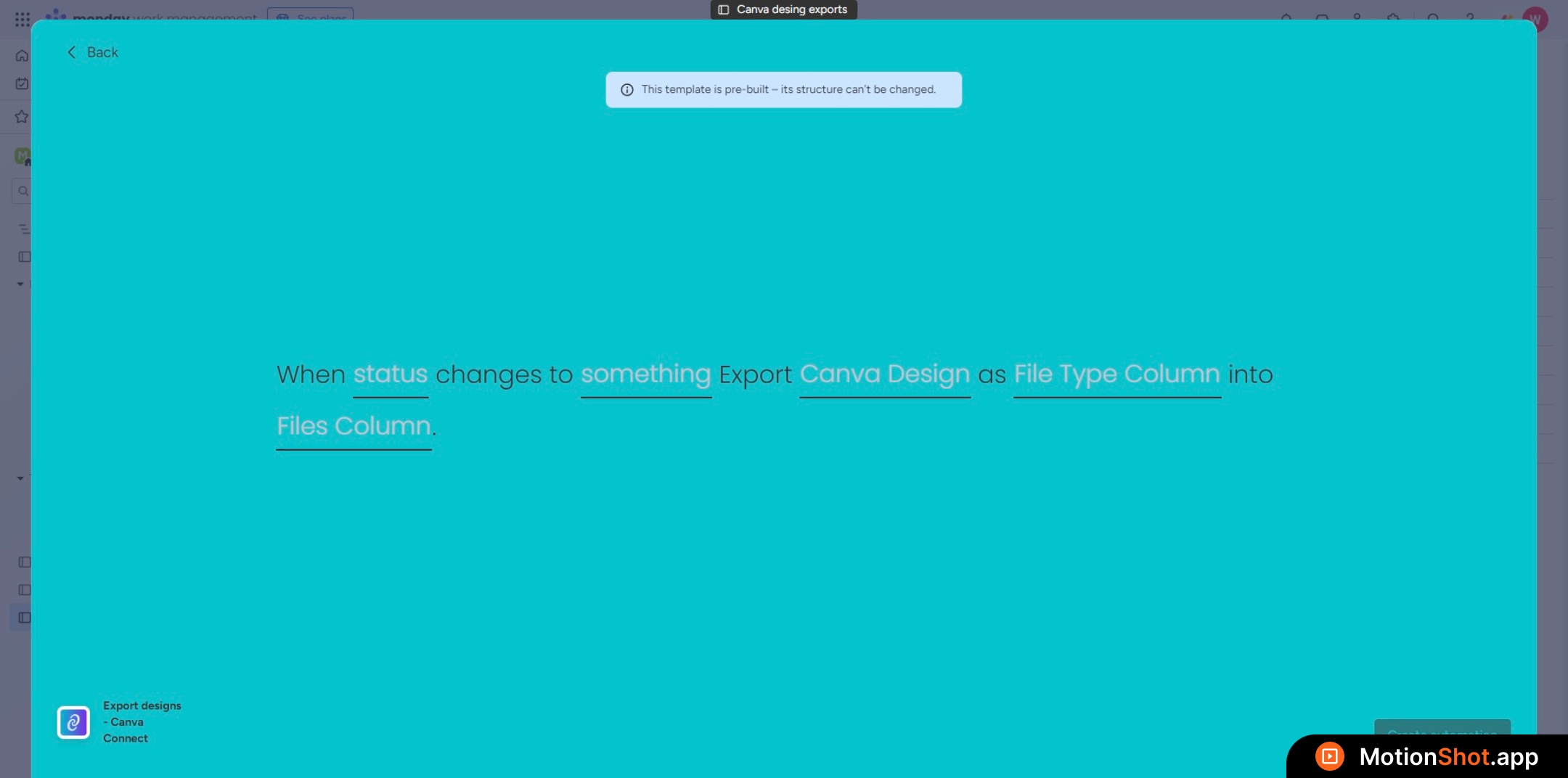
<b>'Export to Dynamic Format</b>' supports only this recipe. Follow this tutorial to configure it
2
Choose the status column that will trigger the recipe on change
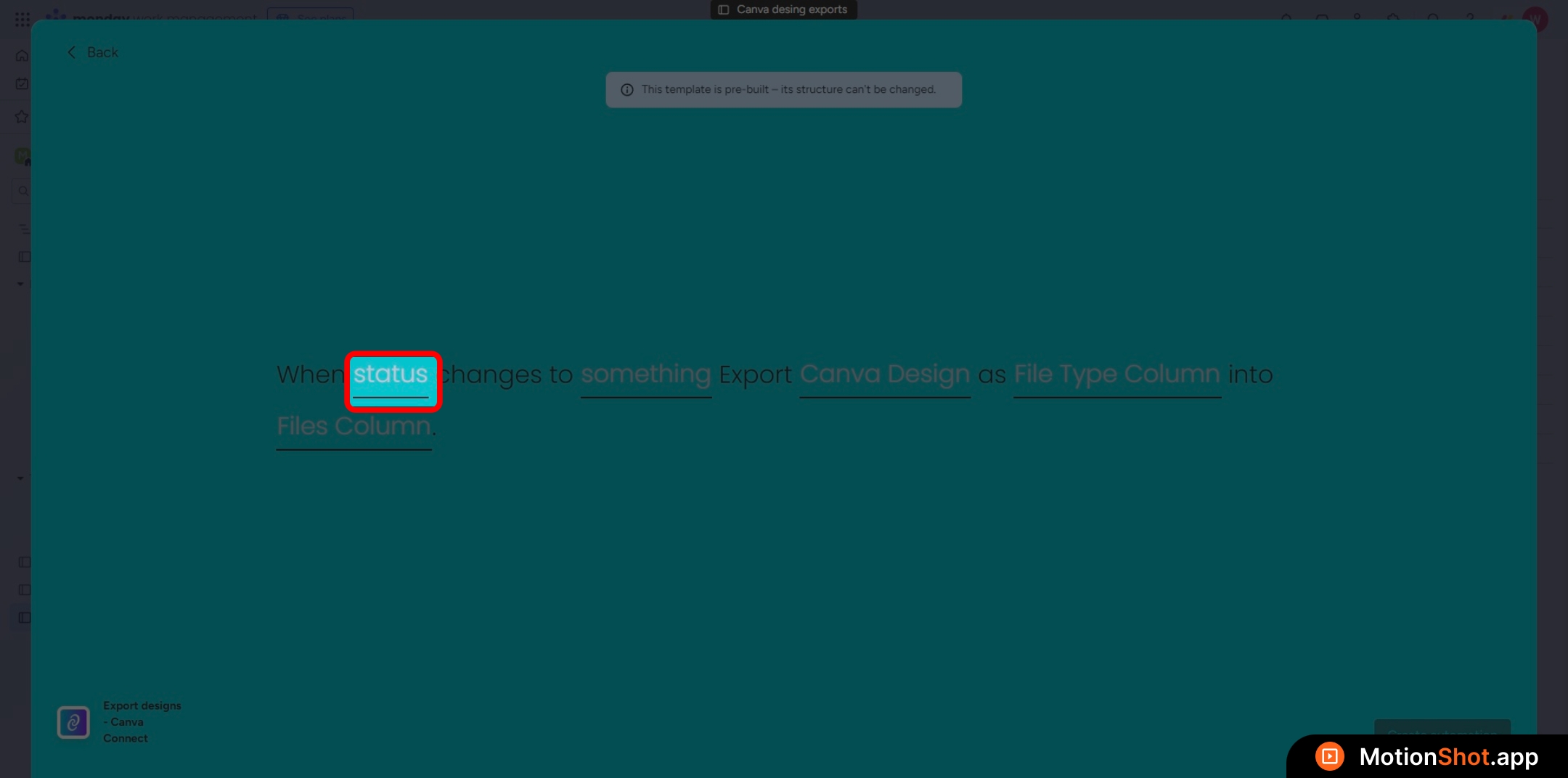
Choose the <b>status column</b> that will trigger the recipe on change
3
Choose the status value for the status column that will trigger the recipe.
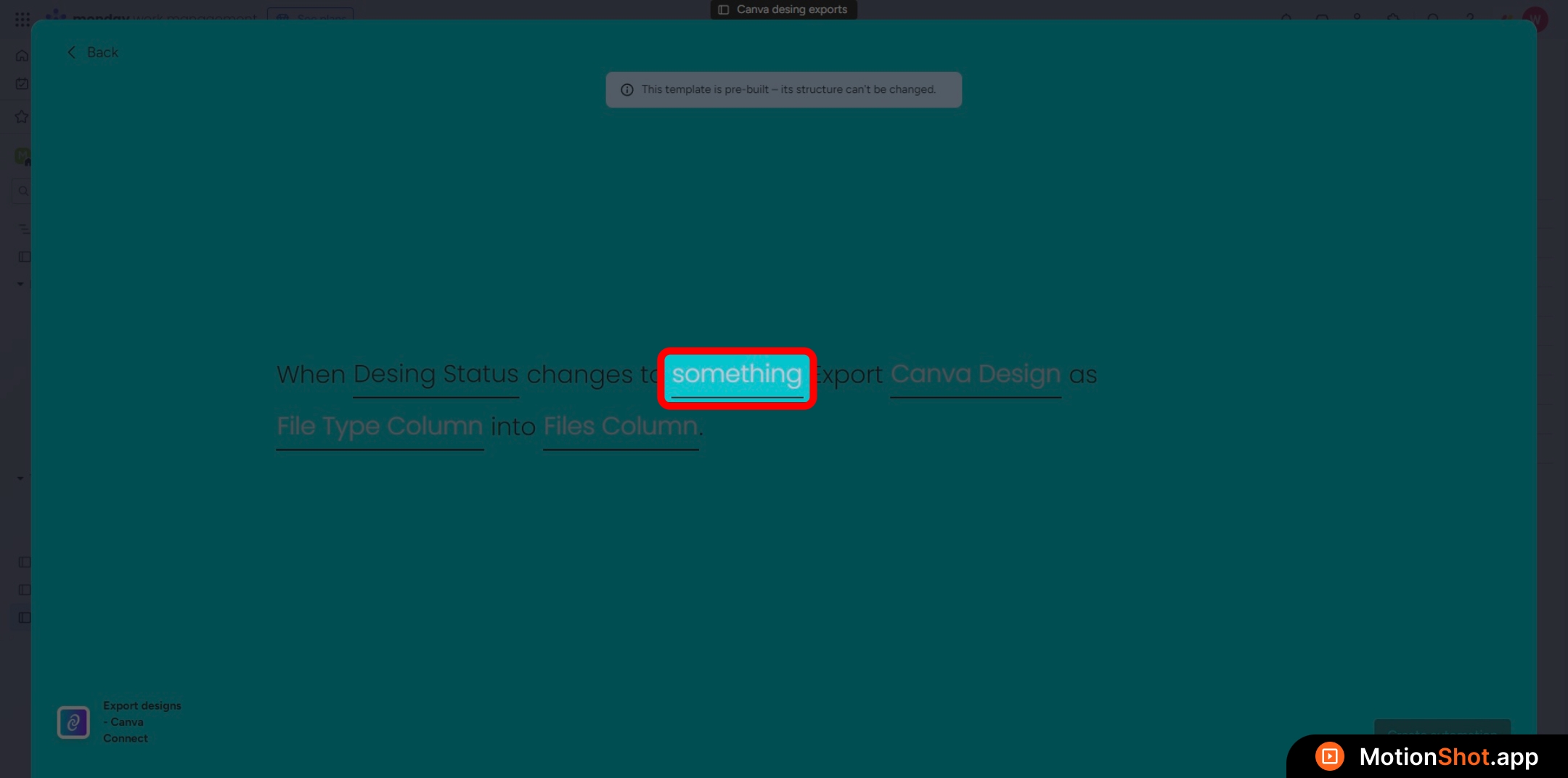
Choose the <b>status value </b>for the<b> status column</b>&nbsp;that will trigger the recipe.
4
Select the link column that will hold the Canva design URL for export
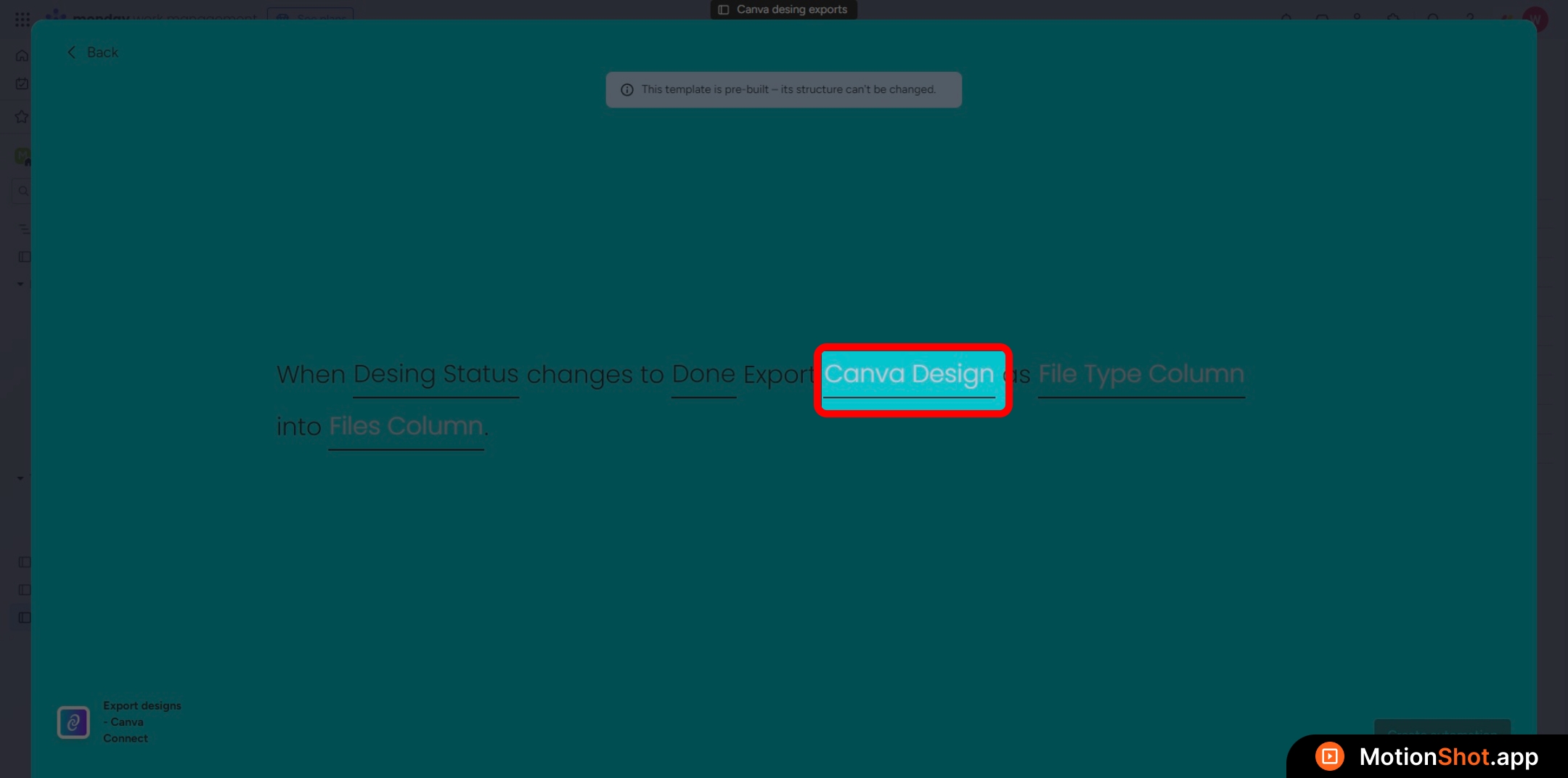
Select the <b>link column</b> that will hold the Canva design URL for export
5
Select the status column that will dynamically contain the file format for the export
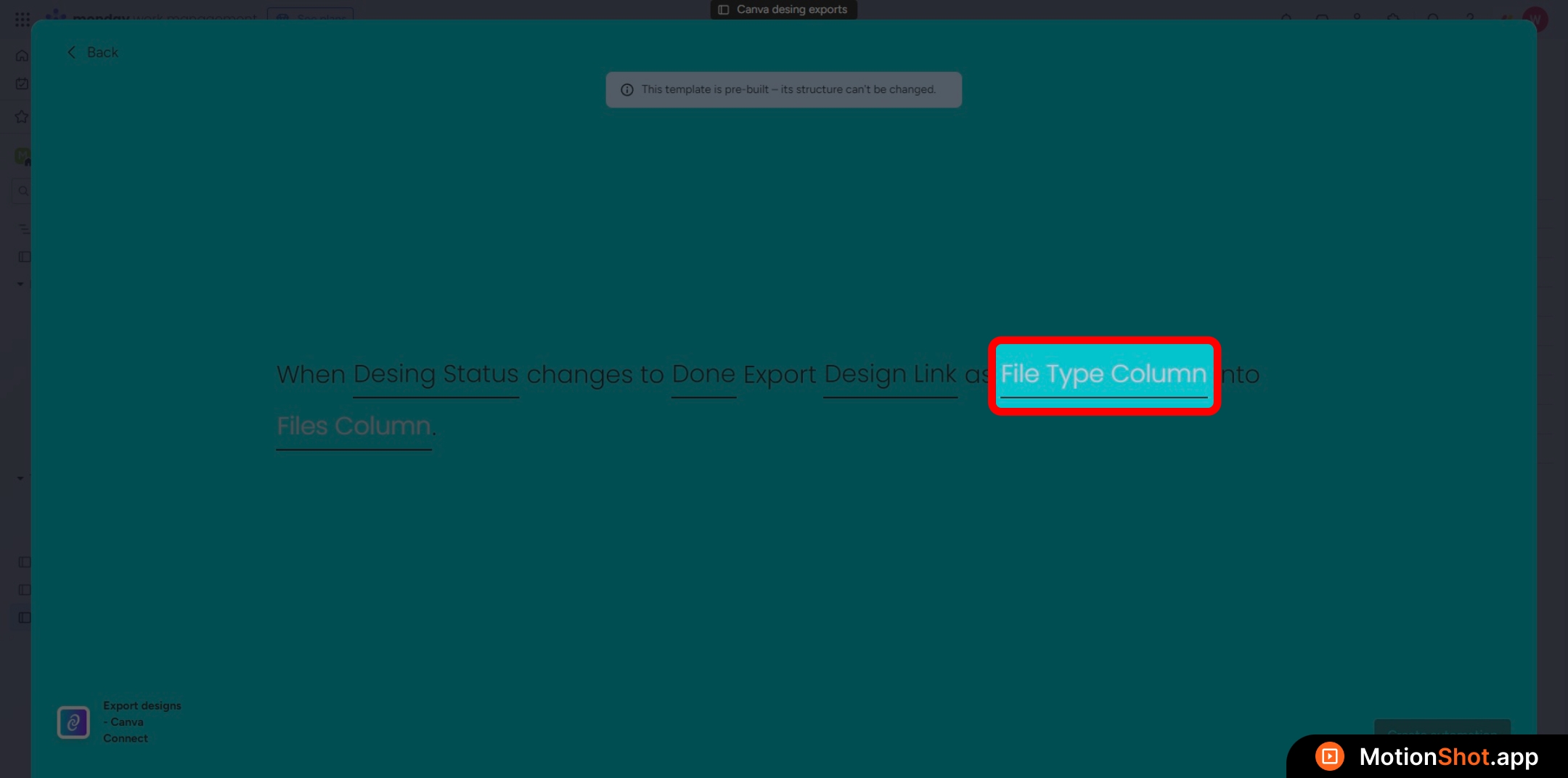
Select the <b>status column</b> that will dynamically contain the file format for the export
6
The Format Type Column should be structured like this. For more details, refer to the documentation
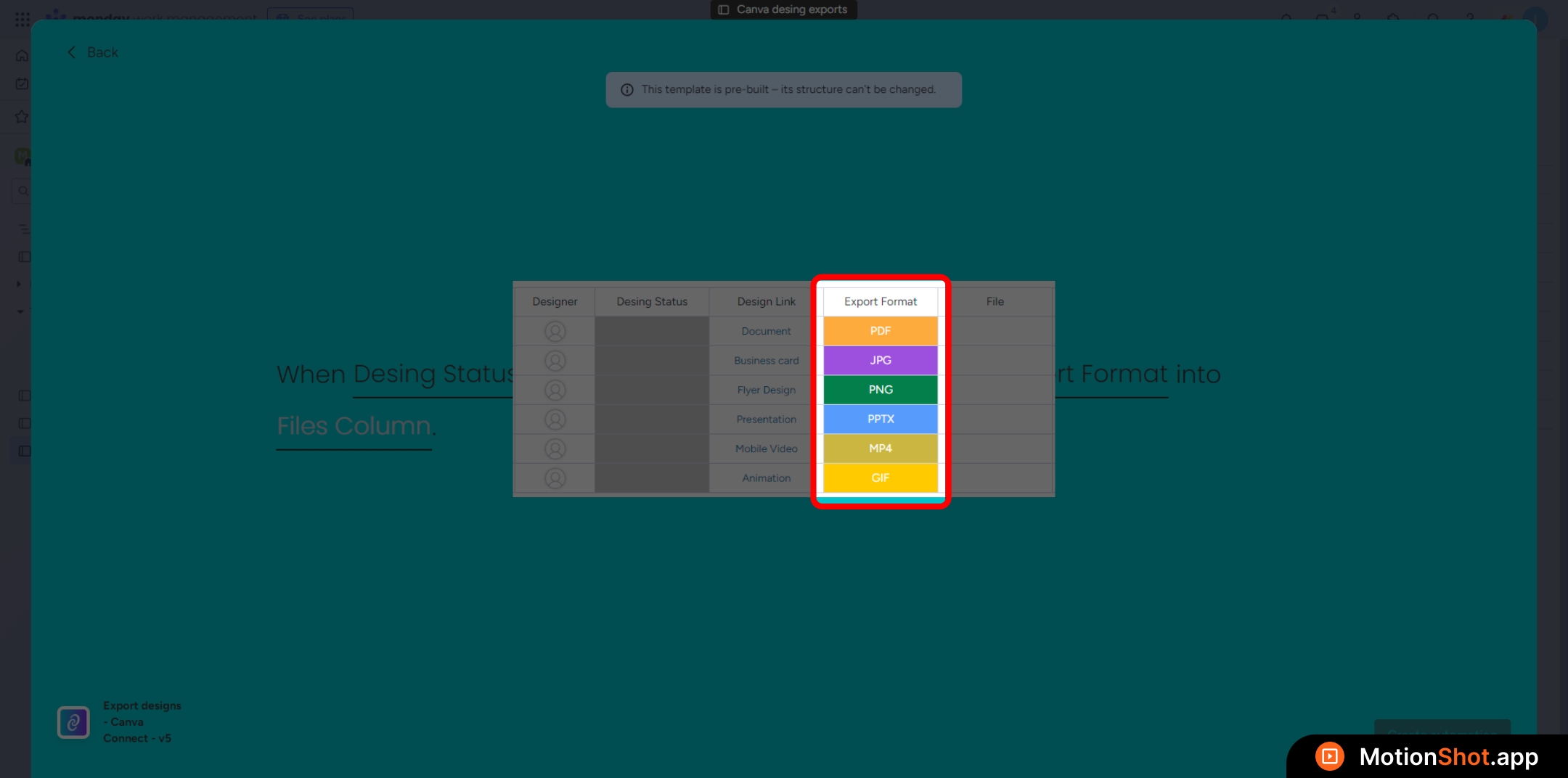
The <b>Format Type Column</b> should be structured like this. For more details, refer to the documentation
7
Select the files column that will contain the exported design file after the export finishes
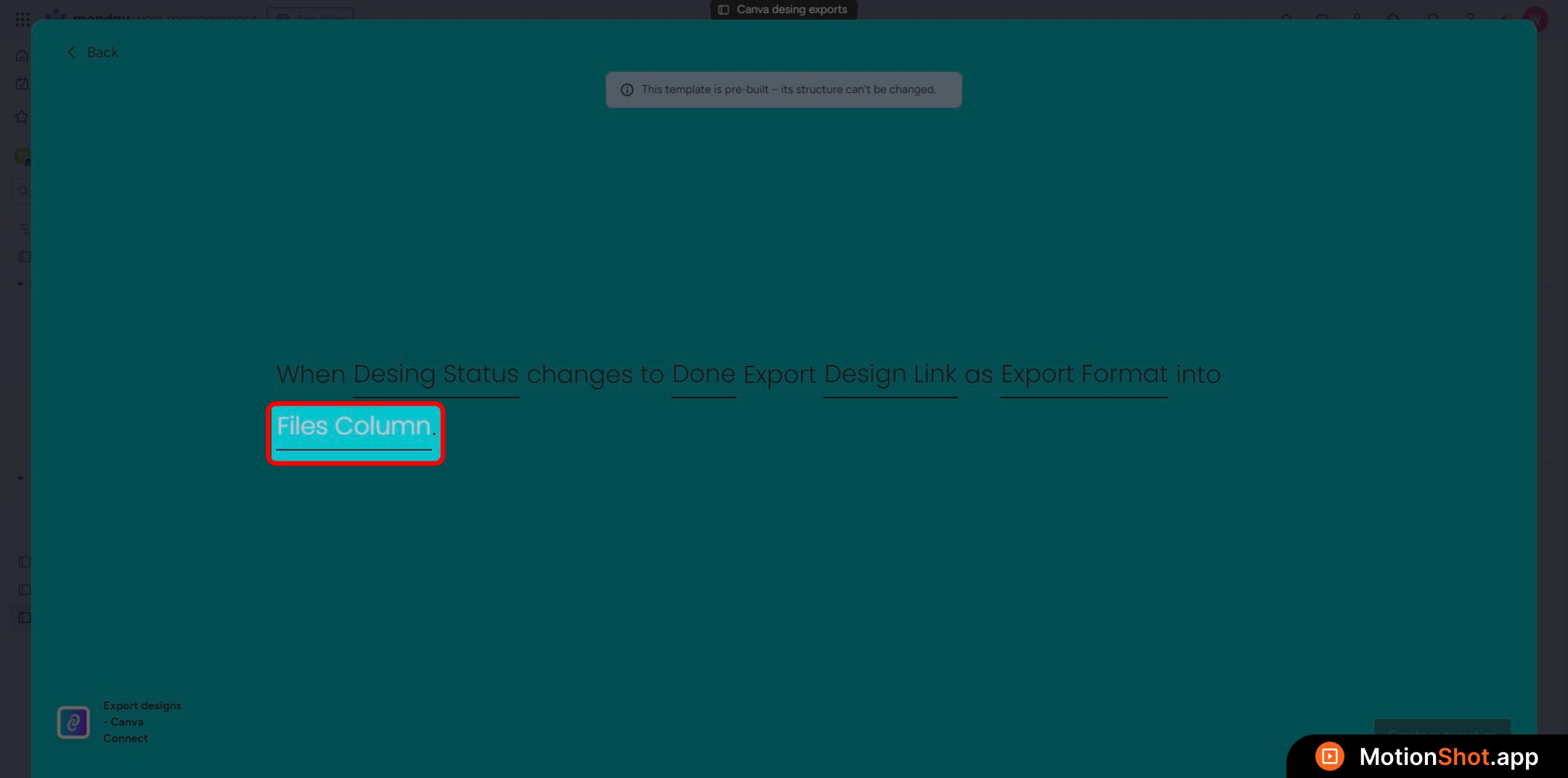
Select the <b>files column</b> that will contain the exported design file after the export finishes
8
Click 'Create Automation' button to add the recipe.
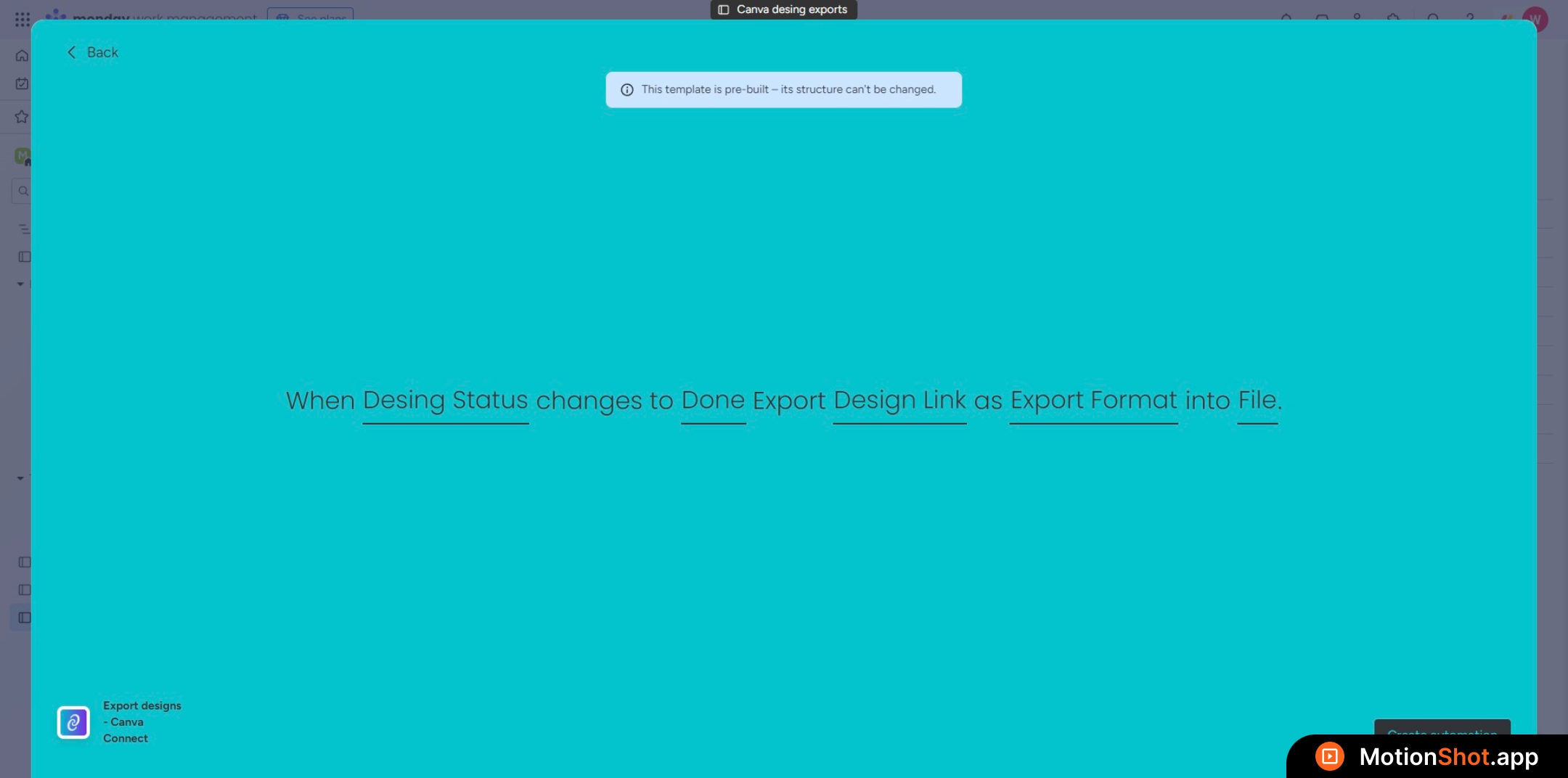
Click '<b>Create Automation</b>' button to add the recipe.