Sign Up For PurchaseDot
This walk through guides you from signing up for the application
1
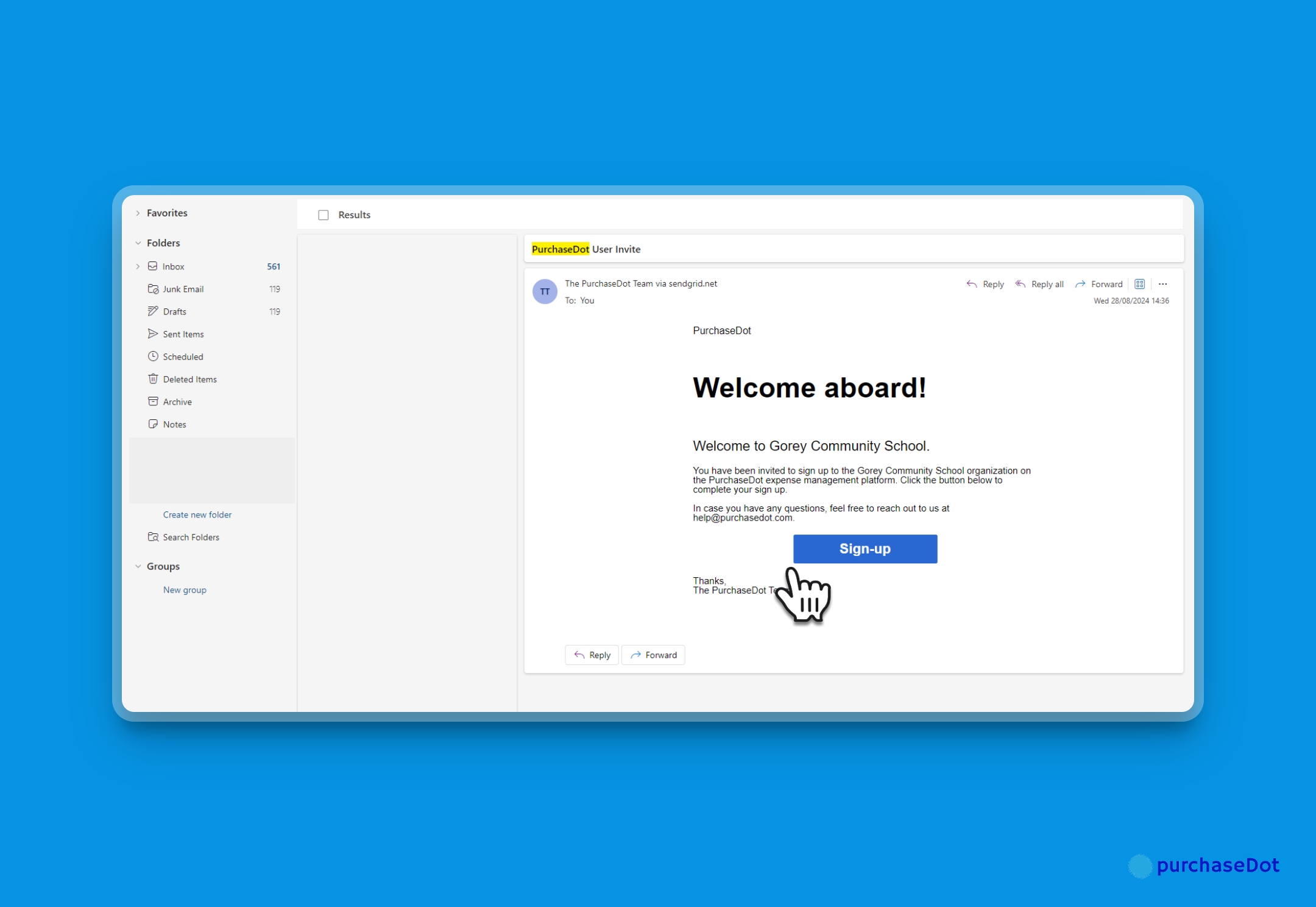
In your inbox, open the invite email and click the Sign-up button.
2
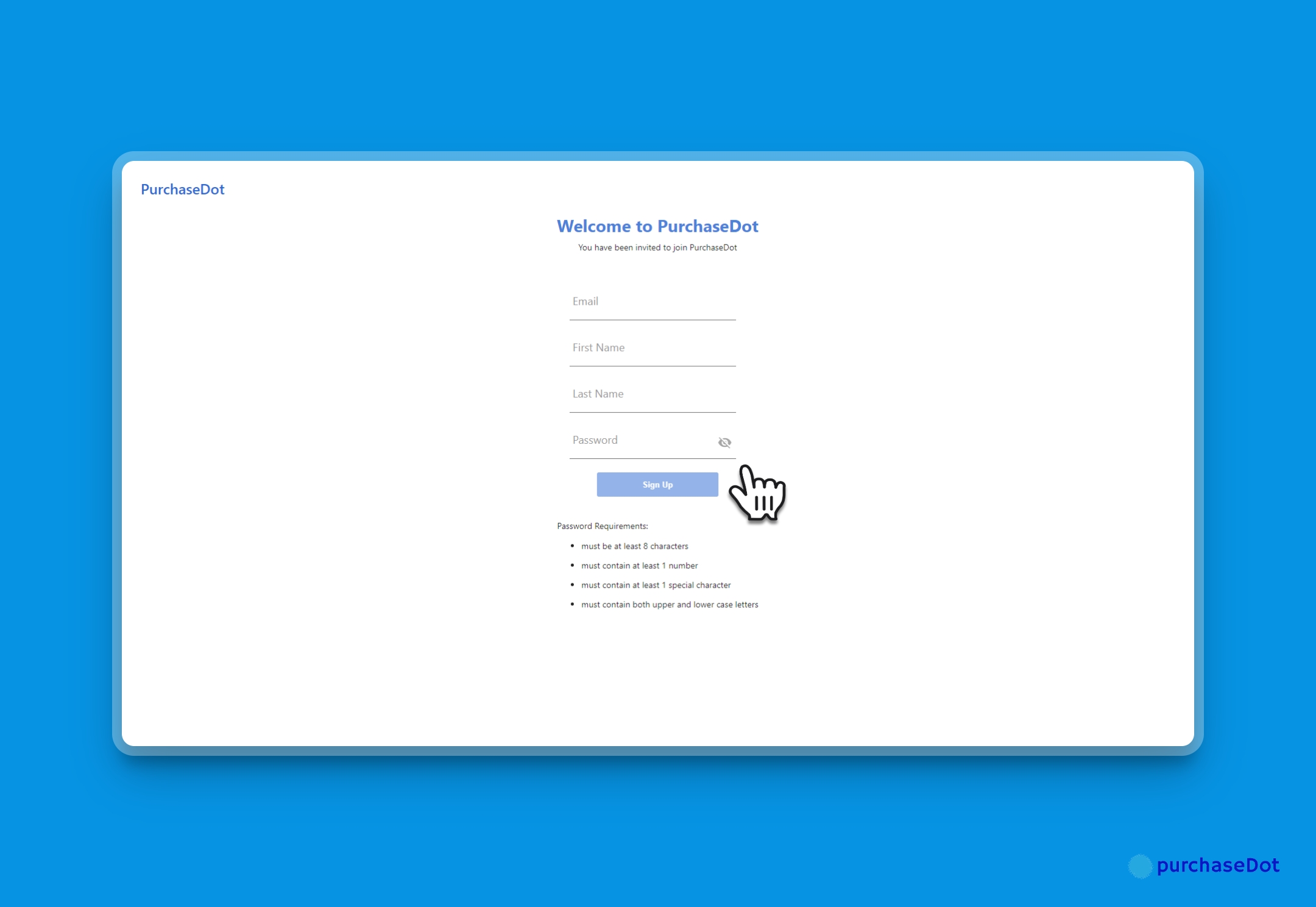
PurchaseDot signup page will open a new tab in your browser.

3
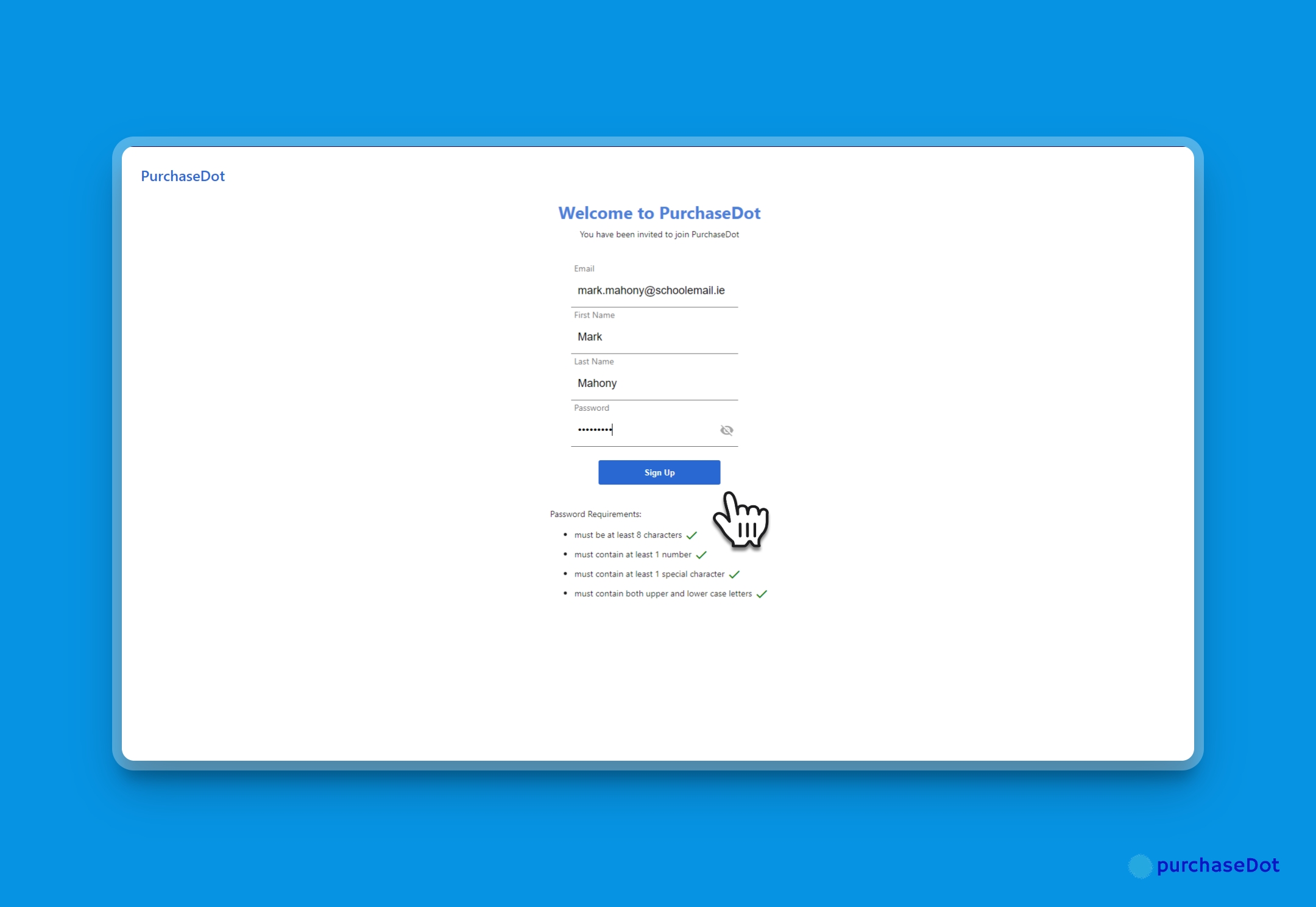
Using the email address where you received your invite, fill in your details and a password that meets the requirements.
4
Click Sign Up
5
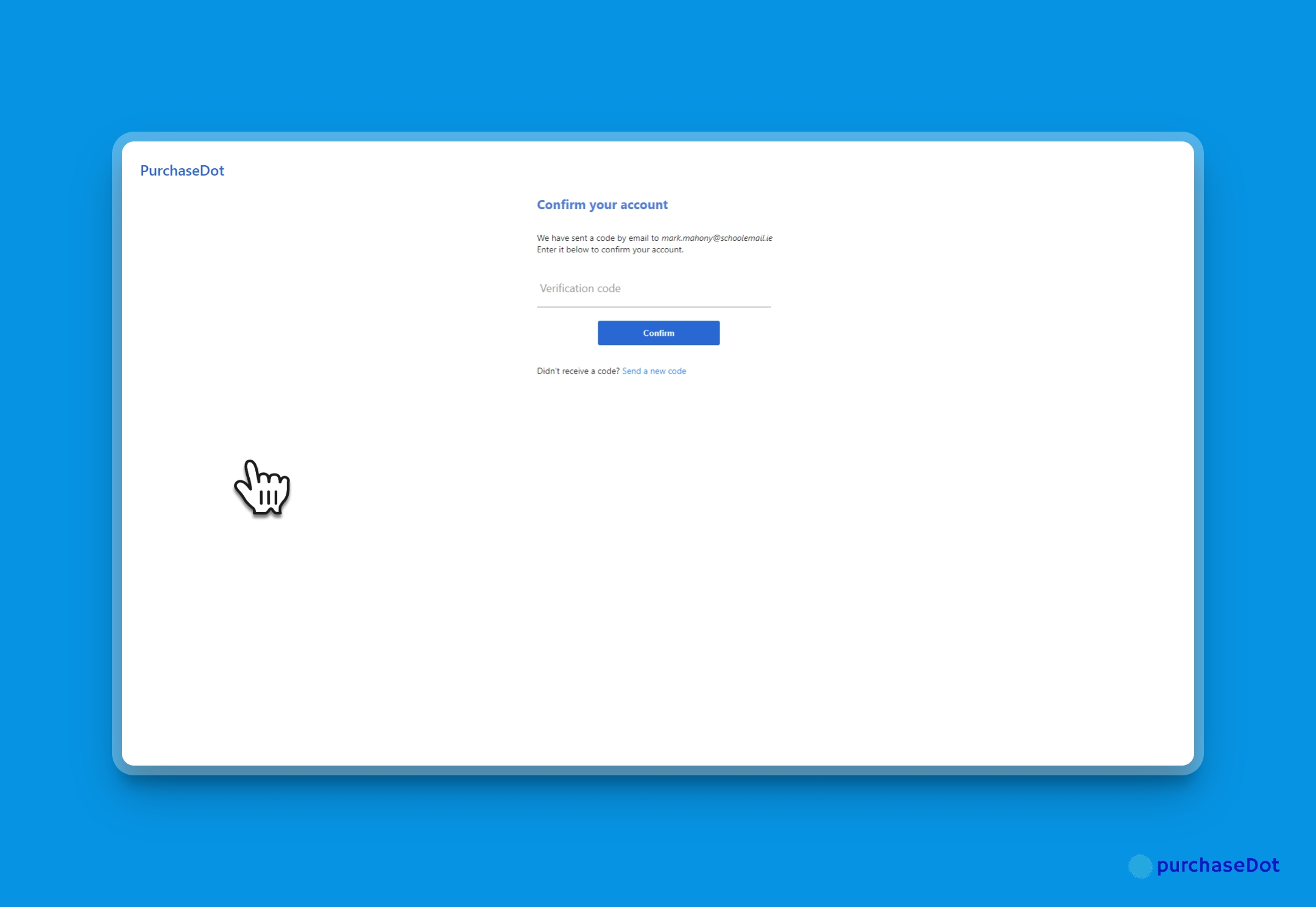
Check your email inbox, where you should have a new email containing the verification code
6
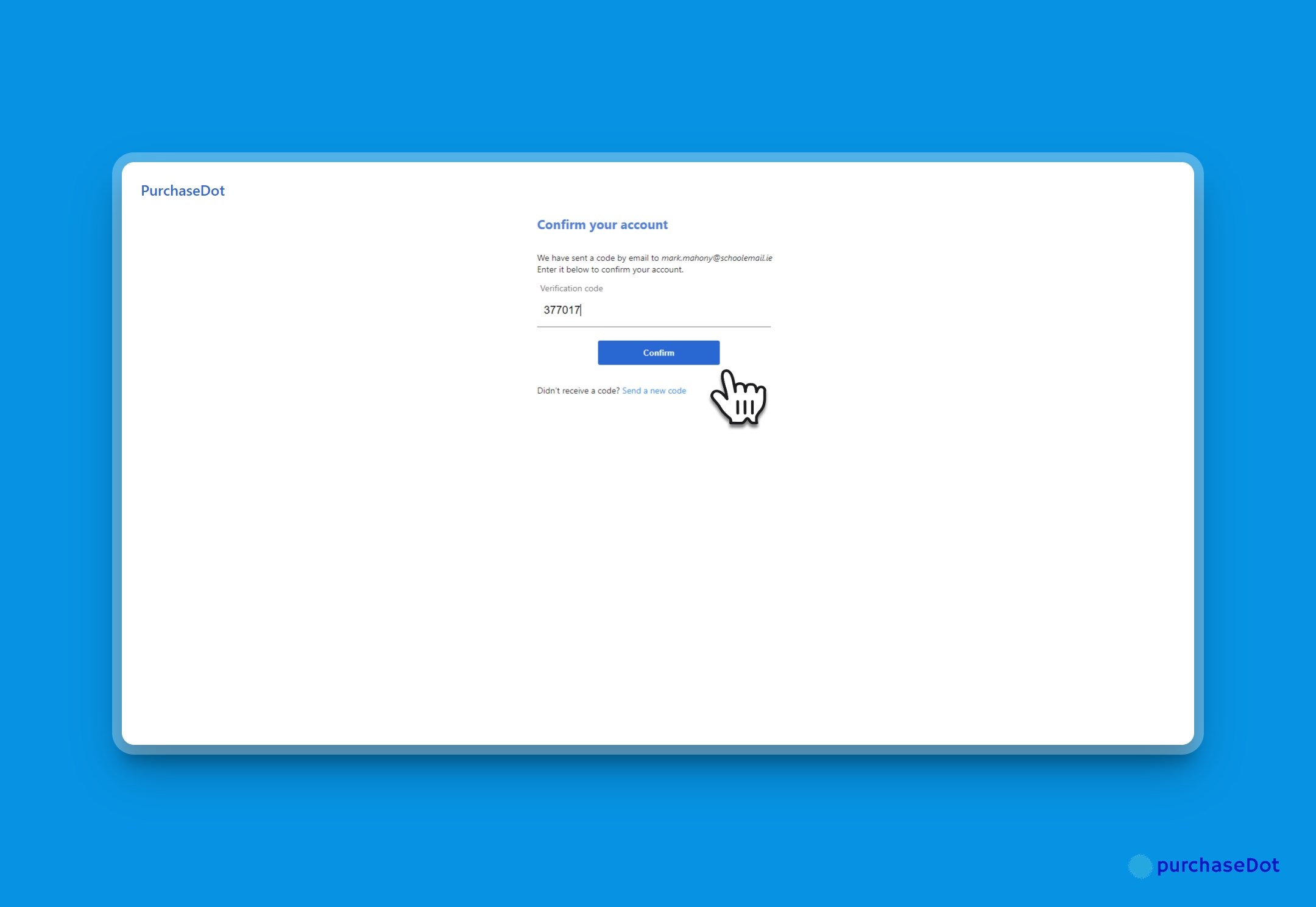
Copy and paste the code into the box and click Confirm
7
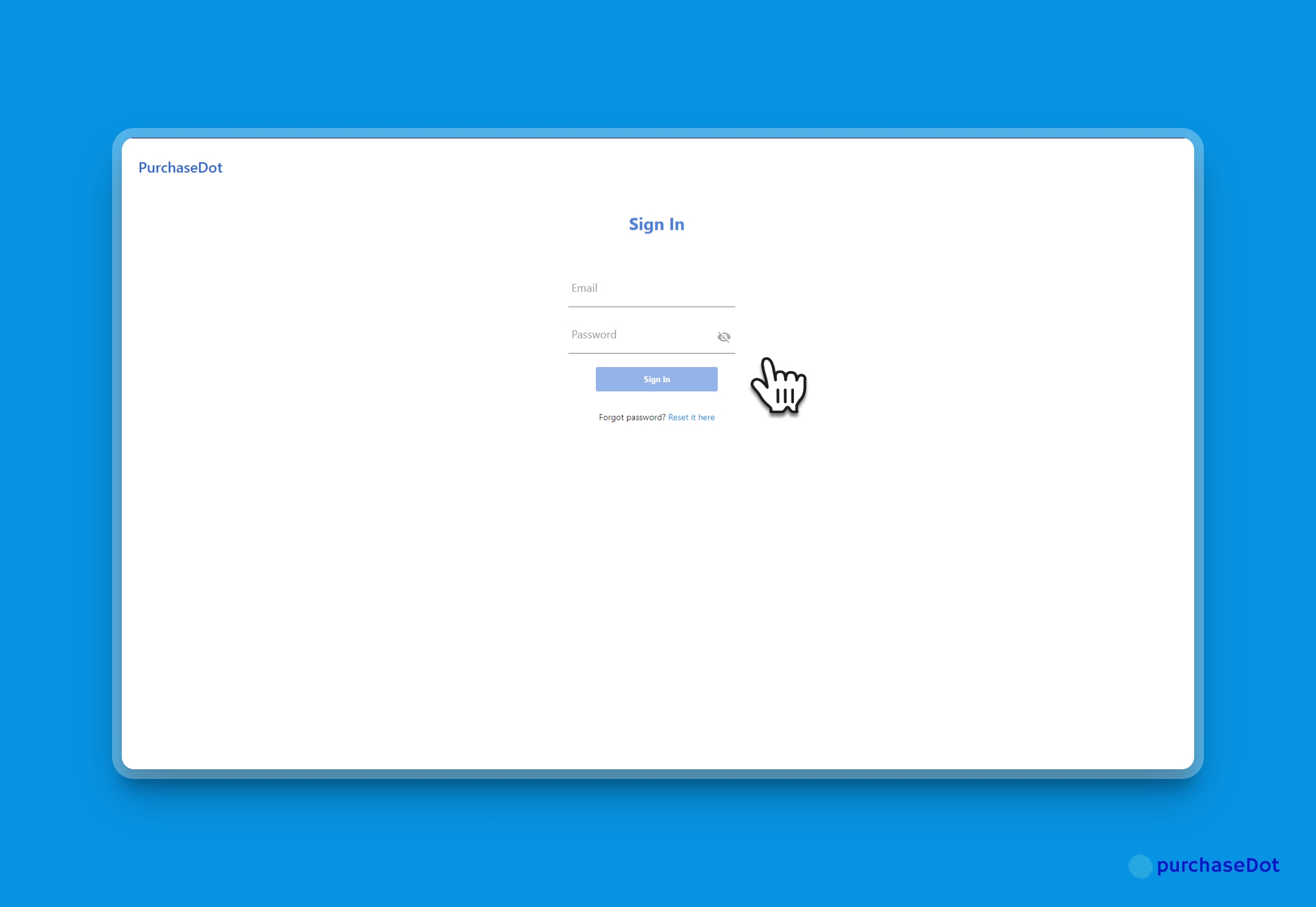
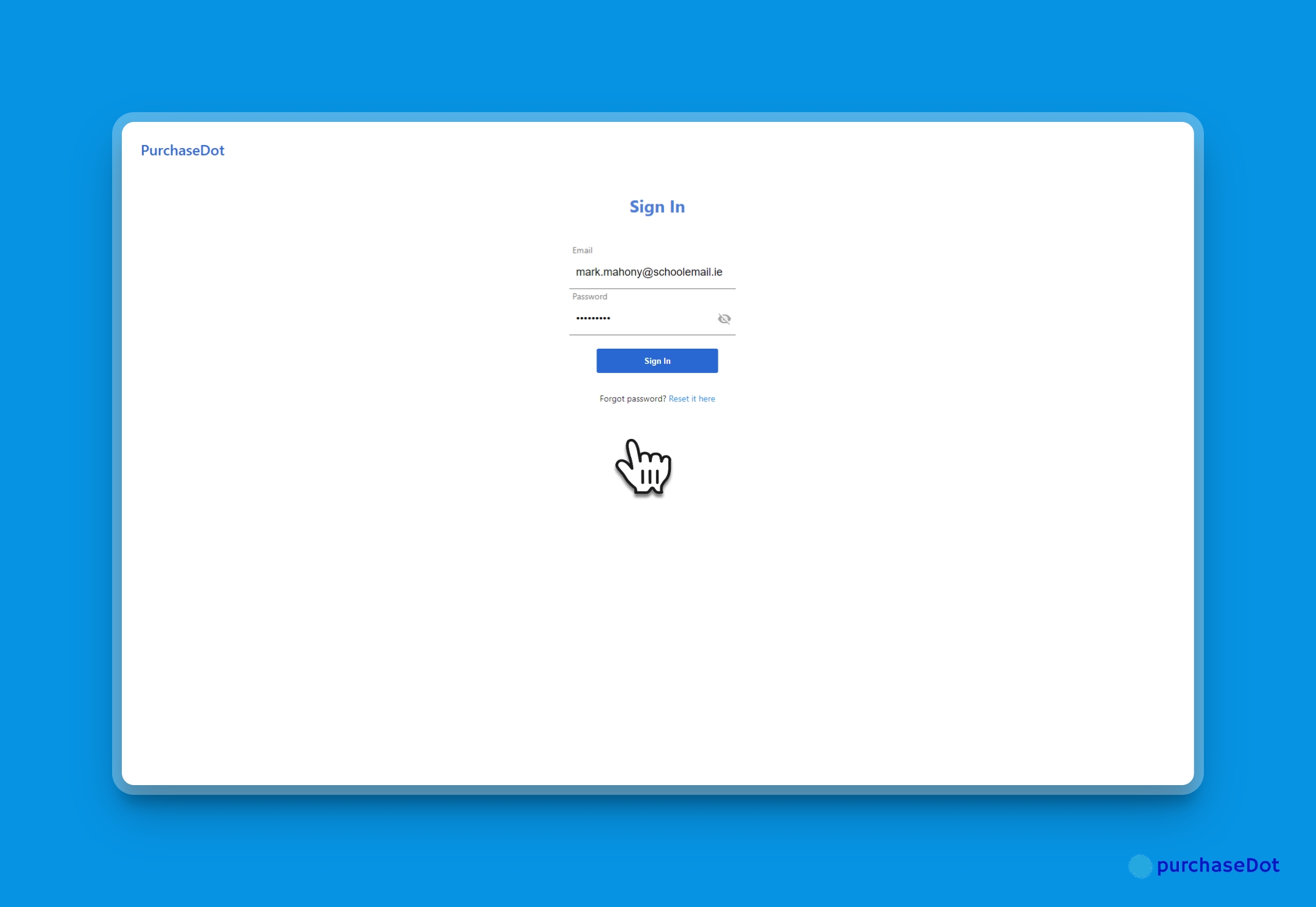
Now you will be prompted to sign in with the email address and password you just created.
8
Sign in
9
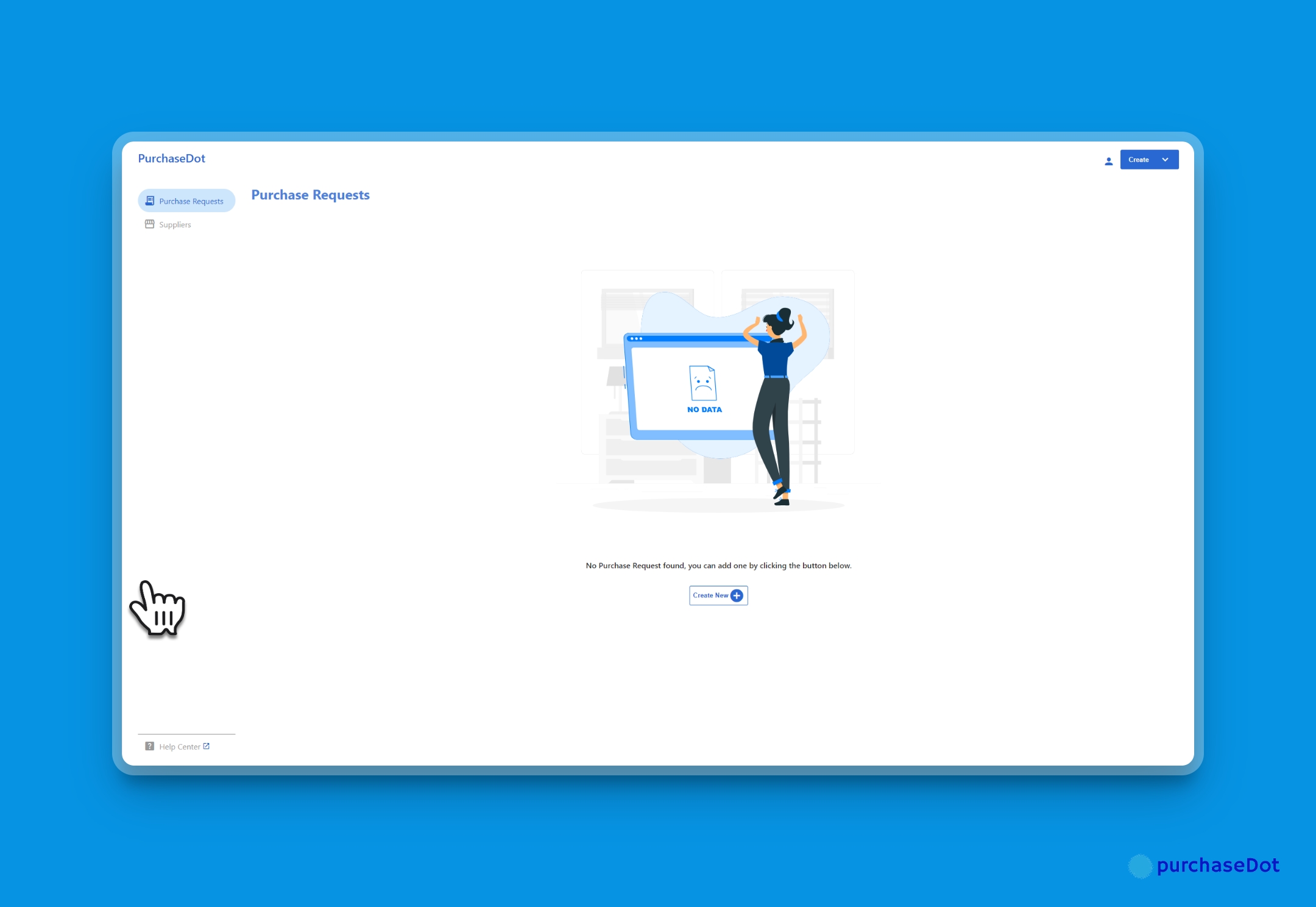
You will be signed into the application. If you have not added any purchase requests, you will see a screen like this one
Please check the other tutorials to see how to add Purchase Requests and other functionality.
Please check the other tutorials to see how to add Purchase Requests and other functionality.